Setting Up a Dedicated WebSockets Server
At this stage we are ready to set up our dedicated WebSockets server. To understand what a WebSockets dedicated server is, you may want to read the Using a Dedicated WebSockets Server topic first: https://unigui.com/doc/online_help/using-a-dedicated-websockets-s.htm

1

Create the HyperWS folder and copy files

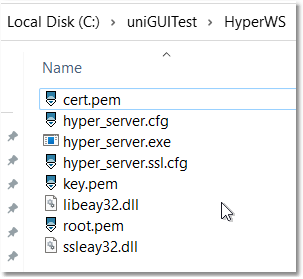
Create a new folder named HyperWS under your test folder, then copy all necessary HyperServer files into this folder.

clip0271
2

Configure the main CFG

Set up the related CFG file. Only a few settings must be changed. Under the [hyper_server] section leave binary_name empty (this HyperServer will not serve any application) and set the non-secure port:

[hyper_server]

binary_name=

port=8077
3

Configure SSL settings

Create or edit hyper_server.ssl.cfg with the SSL section like the example below:

object TUniHyperSSL

SSL.Enabled = True

SSL.SSLOptions.RootCertFile = 'root.pem'

SSL.SSLOptions.CertFile = 'cert.pem'

SSL.SSLOptions.KeyFile = 'key.pem'

SSL.SSLOptions.Method = sslvTLSv1_2

SSL.SSLOptions.SSLVersions = [sslvTLSv1_2]

SSL.SSLOptions.Mode = sslmUnassigned

SSL.SSLOptions.VerifyMode = []

SSL.SSLOptions.VerifyDepth = 0

SSL.SSLPort = 8078

end
Notes:

  • Assigning a non-zero SSLPort means the server will serve both secure and non-secure connections.

  • If you want the server to serve only secure connections, leave SSLPort at the default 0 value.

4

Understand ports and URLs

Behavior based on SSLPort:

  • If SSLPort is 0 and SSL is enabled, the port parameter is used as the secure port.

  • If SSLPort is non-zero, SSLPort is the secure port and port is the non-secure entry point.

With the settings above:

  • Non-secure HTTP/WS port = 8077

  • Secure HTTPS/WSS port = 8078

So these URLs should be accessible once the server is running:

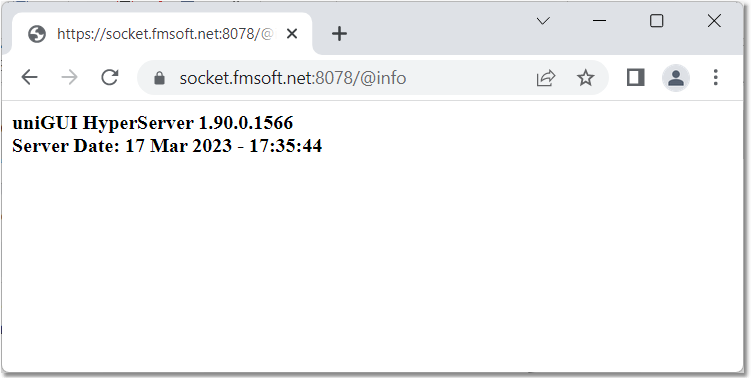
  • https://socket.fmsoft.net:8078

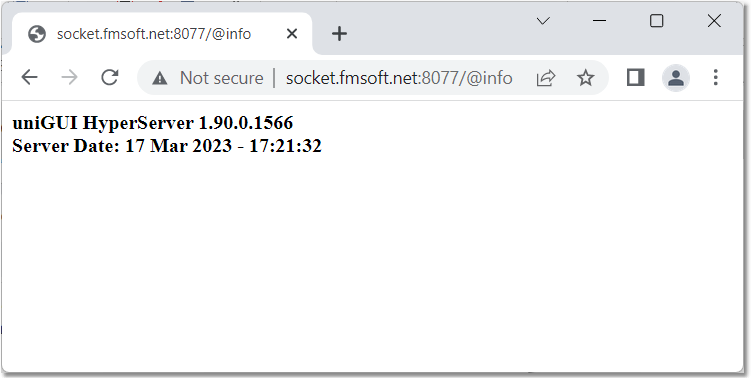
  • http://socket.fmsoft.net:8077

5

Test the server

Because this server does not serve any application, calling the root URLs will not return an application web page and will show an error message. To verify the server is up and running, use the special path @info. Calling this path returns brief server information for both secure and non-secure URLs.

Example screenshots showing successful tests for both ports:

clip0272
clip0273

Once the tests show the server is running normally on both ports (secure & non-secure), you can proceed to test it using a test application.