Testing the Certificate Locally

Normally a certificate only works in the designated domain, but it is also possible to test it on a local PC. This helps ensure your PEM files are generated correctly and your application is configured properly.

1

1. Redirect the domain to localhost (edit hosts file)

Edit the hosts file on Windows (located at C:\Windows\System32\drivers\etc\hosts). The file is protected—open your editor with Administrator privileges to save changes.

Add a line mapping your domain to 127.0.0.1. Example hosts file contents:

# Copyright (c) 1993-2009 Microsoft Corp.
#
# This is a sample HOSTS file used by Microsoft TCP/IP for Windows.
#
# ... (comments omitted) ...
# localhost name resolution is handled within DNS itself.
#   127.0.0.1       localhost
#   ::1             localhost

127.0.0.1 socket.fmsoft.net

This last line redirects socket.fmsoft.net to your local machine for testing.

circle-exclamation

You can verify the change by pinging the domain. For example, ping socket.fmsoft.net should resolve to 127.0.0.1.

2

2. Create a test uniGUI application and configure SSL

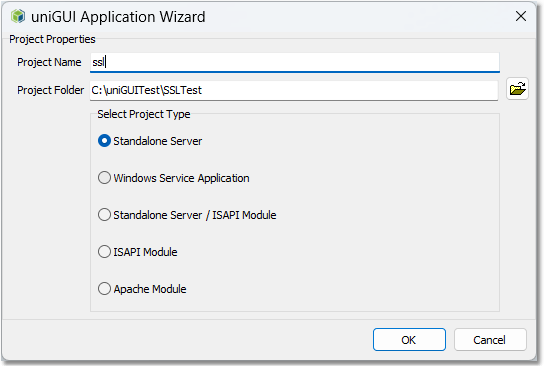
  • Create a new uniGUI application.

    project wizard
    project created
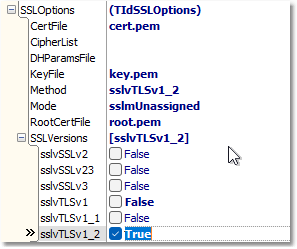
  • In the ServerModule set:

    • SSL->Enabled = True

    • Choose TLS v1.2 as the supported protocol (SSL.SSLOptions.Method = sslvTLSv1_2)

    • If your key file requires a password, set SSLPassword; otherwise leave blank.

Refer to Understanding SSL Protocols if needed: https://unigui.com/doc/online_help/understanding-ssl-protocols.htm

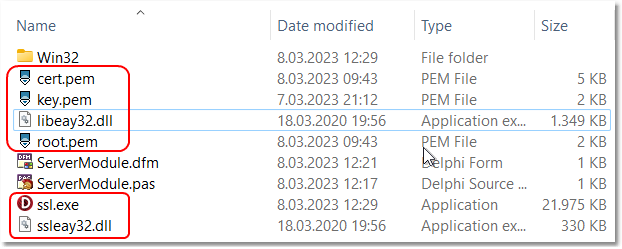
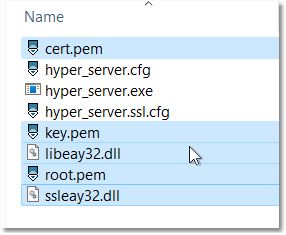
  • Copy the PEM files (root.pem, cert.pem, key.pem) to the application folder.

    copy pem files
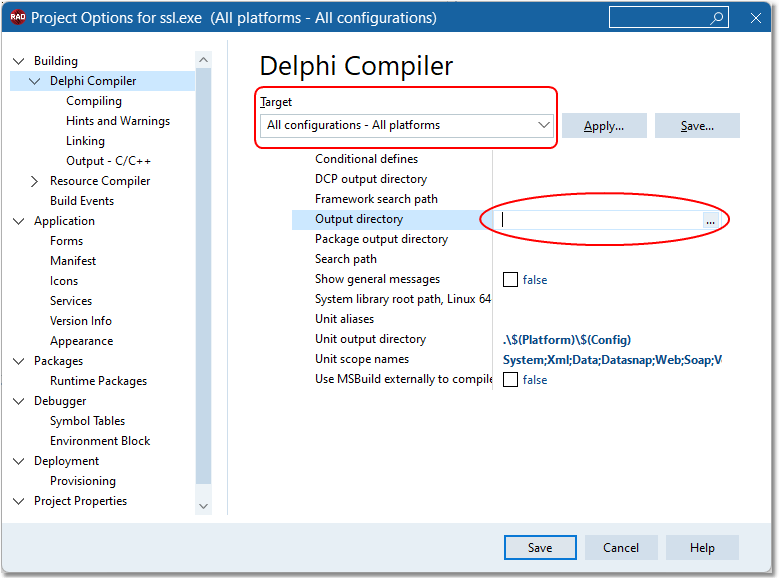
  • Set the project's Output directory to blank so the EXE is created in the application root. Copy the required SSL DLLs (distributed with uniGUI) from ..\Framework\uniGUI\SSL\dll to the application folder.

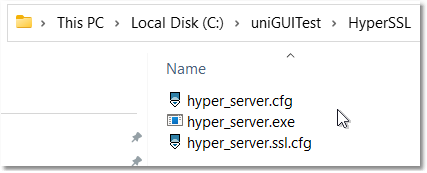
After building, the application folder should look like this:

app folder
3

3. Run and verify the application with HTTPS

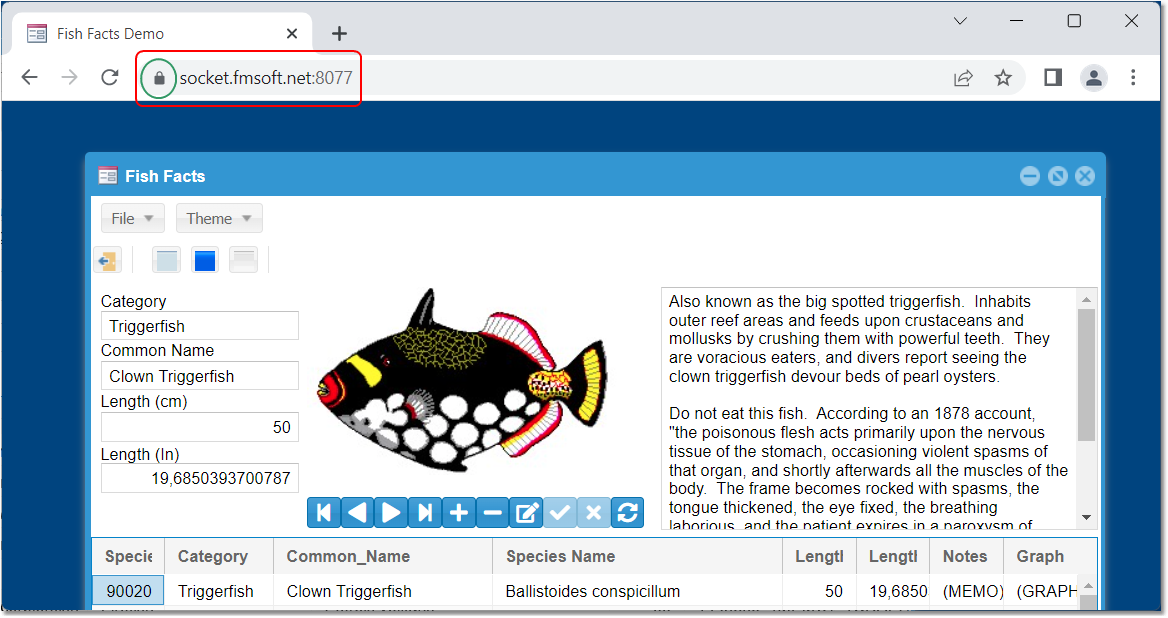
  • Run the application and open the URL:

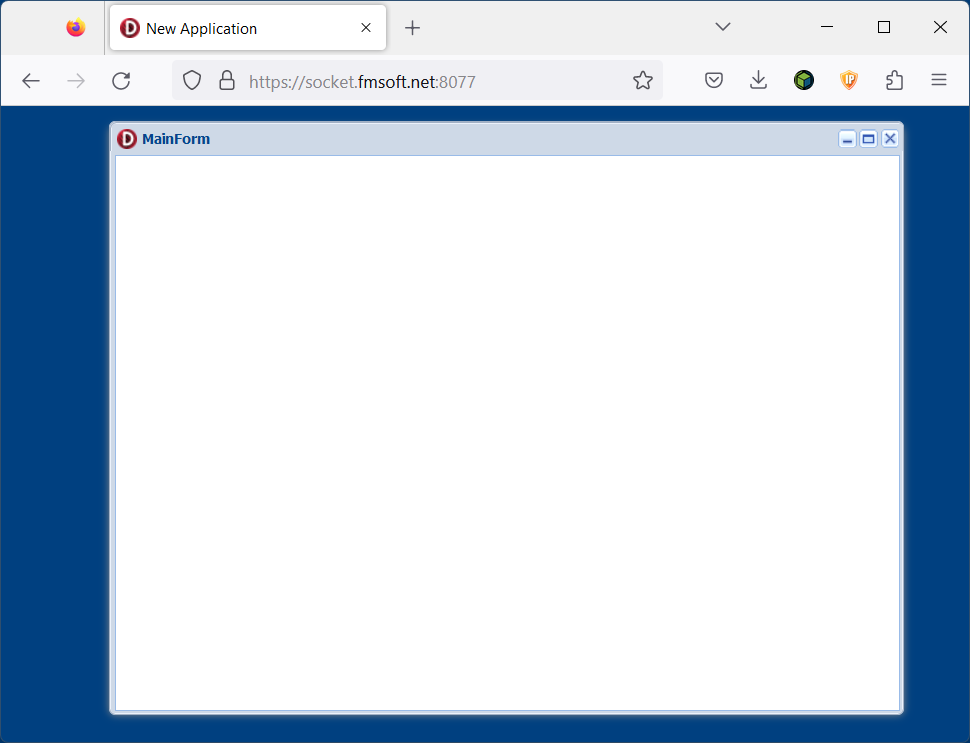
    https://socket.fmsoft.net:8077

  • You should see the application main form served over HTTPS.

    secured page
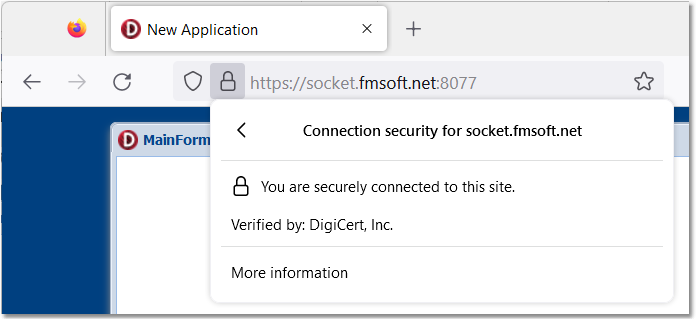
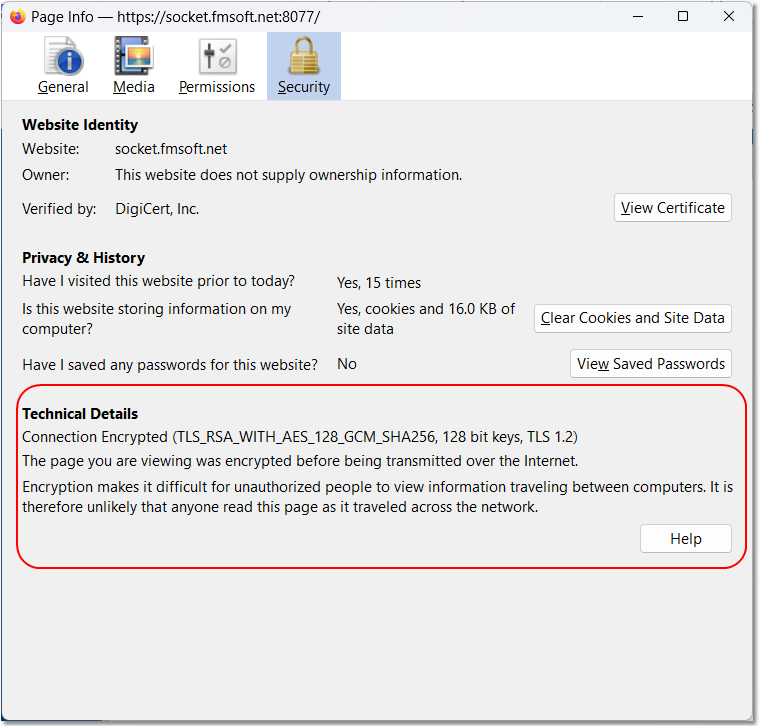
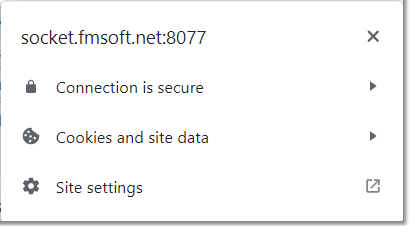
  • Inspect the page certificate details to confirm the page is secured by your certificate.

    certificate lock
    certificate details

At this point your certificates and PEM files are validated with the uniGUI application.

4

4. Test with a local HyperServer instance
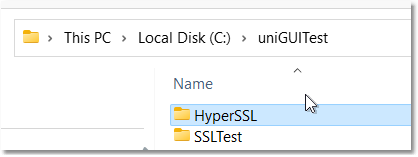
  • Create a folder named HyperSSL under your main test folder.

    create folder
  • Copy HyperServer pre-compiled binaries and config files to this folder.

    copy hyperserver binaries
  • Copy SSL-related DLLs and certificate files into the HyperSSL folder.

    copy ssl dlls and certs
  • Edit hyper_server.ssl.cfg and enable SSL and point to your PEM files. Example snippet:

object TUniHyperSSL

SSL.Enabled = True

SSL.SSLOptions.RootCertFile = 'root.pem'
SSL.SSLOptions.CertFile     = 'cert.pem'
SSL.SSLOptions.KeyFile      = 'key.pem'
SSL.SSLOptions.Method       = sslvTLSv1_2
SSL.SSLOptions.SSLVersions  = [sslvTLSv1_2]
SSL.SSLOptions.Mode         = sslmUnassigned
SSL.SSLOptions.VerifyMode   = []
SSL.SSLOptions.VerifyDepth  = 0
SSL.SSLPort                 = 0

end
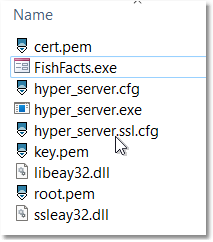
  • Deploy an application binary to use with HyperServer (example uses FishFacts demo). Build the demo and put the resulting EXE in the HyperSSL folder.

    copy demo exe
  • Edit hyper_server.cfg and set binary_name to the demo EXE:

[hyper_server]
binary_name=FishFacts.exe
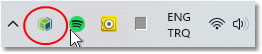
  • Start HyperServer by running hyper_server.exe. An icon will appear in the system tray.

    system tray icon
  • Open the URL:

    https://socket.fmsoft.net:8077/

  • If everything is set up correctly, the FishFacts demo should be displayed over HTTPS.

    fishfacts running
    fishfacts running 2
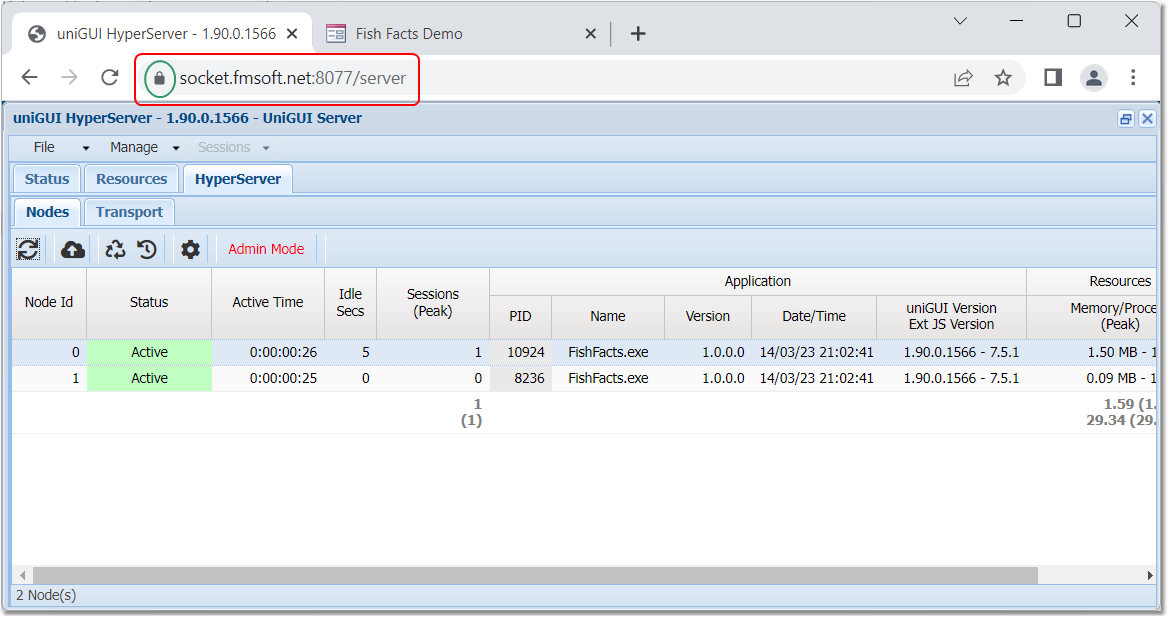
    fishfacts running 3

This demonstrates the SSL certificate works with a HyperServer setup.