
HyperServer System Configuration Application
Starting from build 1487 we introduced a tool to simplify Additional Network Settings and other registry settings associated with uniGUI HyperServer.
What does this tool do?
It applies changes to the TCP/IP subsystem to increase the dynamic port range limit from 16384 to 32768, so HTTP transport channels will scale better with increased traffic and avoid the condition known as port exhaustion.
It applies changes to Windows registry settings to increase the "Desktop Heap" limit. This helps ensure that creating multiple Node instances won't overrun the Windows Desktop Heap for the particular Windows session. For non-interactive desktop sessions this limit is 768 KB by default (may vary by Windows version); this tool increases the limit to 4 MB.
How to install
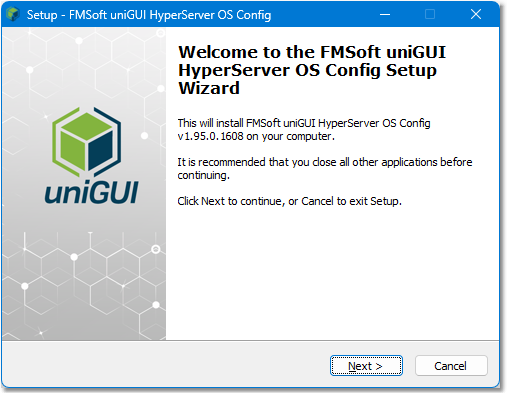
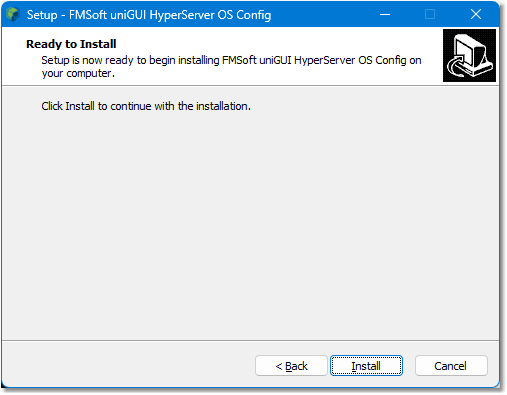

Select options
There are two options in the application. The first option is selected by default. The second option is not selected by default and can be selected before completing the configuration.
Configure TCP/IP Network Settings (used to mitigate port exhaustion when using HTTP transport).
Configure Windows Desktop Heap (used to change Desktop Heap size for service applications).
See details below for guidance on when to check each option.
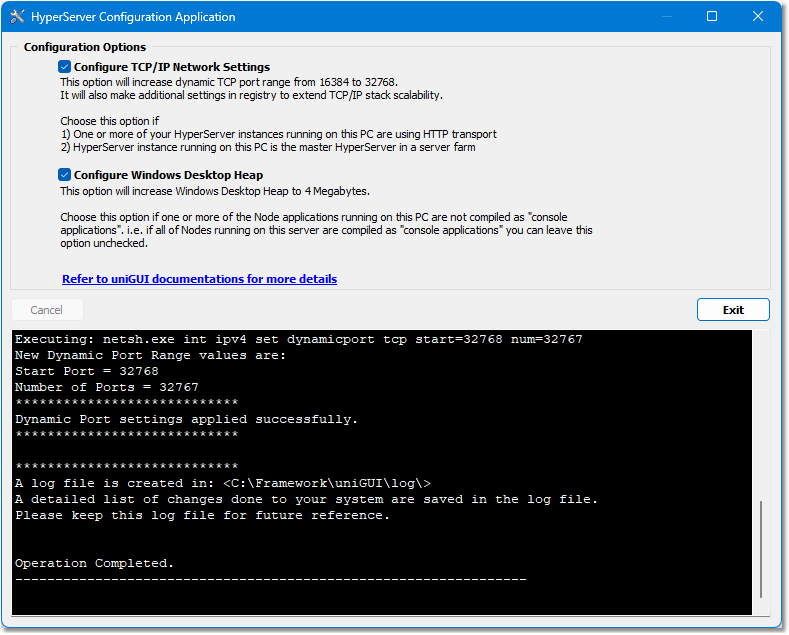
Configure TCP/IP Network Settings
As described in the Additional Network Settings section, when using HTTP transport channels you must ensure the underlying sockets stack can scale to avoid port exhaustion. Apply these TCP/IP changes only when your HyperServer instance uses HTTP transport.
A HyperServer instance uses HTTP transport in these cases:
When
transport_typeparameter is configured as HTTP (transport_type = 0)When the HyperServer instance is a master in a server farm — in this case an auxiliary HTTP transport is created internally to communicate with ServerNodes
If none of the above conditions apply, you can uncheck this option and there's no need to configure the TCP/IP stack on this PC.
Configure Windows Desktop Heap
This option increases Windows Desktop Heap size for service applications (Windows Service and ISAPI applications).
If your uniGUI applications on this PC are compiled as console applications (see Compiling Nodes as Console Applications), Desktop Heap does not affect HyperServer scalability and you can leave this option unchecked.
If you run service/ISAPI-based uniGUI apps, enable this option to increase Desktop Heap.
Logs and uninstall behavior
A log file is created under the <..\uniGUI\Log> folder. This log file contains details of changes made to OS settings.
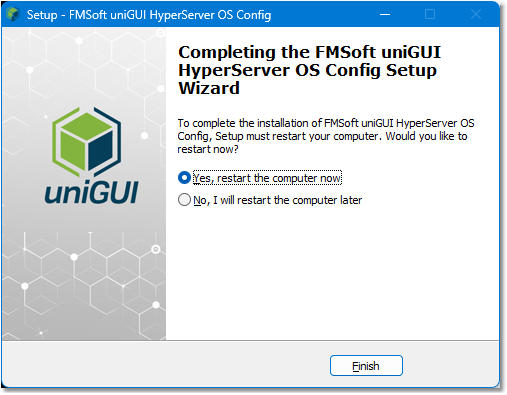
Uninstalling this application will NOT revert settings to their previous states. A server restart is required after running the tool to apply changes.
Atualizado