
Additional Network Settings
Below settings apply only to HyperServer instances configured to use HTTP transport channels.
Under normal conditions no extra settings are needed on the server side, but in some cases where other software actively uses the TCP protocol on your server you may need to make additional tunings to ensure HyperServer communication with Nodes is not disrupted. These adjustments help avoid a condition named port exhaustion: https://learn.microsoft.com/en-us/troubleshoot/windows-client/networking/tcp-ip-port-exhaustion-troubleshooting
Increase number of dynamic ports
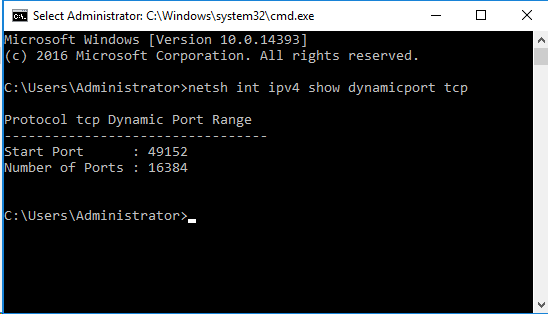
By default, Windows Server's dynamic port range starts at 49152 and ends at 65535 (16,384 ports). The example below increases the dynamic port range so that you have 32,767 dynamic ports, reducing the chance of port exhaustion.
Run the following command in an elevated (Administrator) command prompt. Replace <ipv4|ipv6> and <tcp|udp> if needed; the example uses IPv4 and TCP.
netsh int ipv4 set dynamicport tcp start=32768 num=32767This creates a dynamic port range of 32,767 ports starting from port 32768. Make sure your HyperServer Node ports are below this start port number.
You can query the current dynamic port settings before changing them:
netsh int ipv4 show dynamicport tcp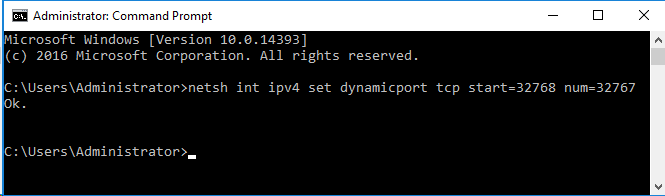
Change TcpTimedWaitDelay registry parameter
You can reduce the TcpTimedWaitDelay registry value to decrease the TIME_WAIT duration. The default is 120 seconds; reducing it to 30 seconds lets dynamic ports time out more quickly and helps avoid port exhaustion on systems that heavily use dynamic ports.
Registry details:
| Key: | HKEY_LOCAL_MACHINE\SYSTEM\CurrentControlSet\Services\Tcpip\Parameters | | Value: | TcpTimedWaitDelay | | Data Type: | REG_DWORD | | Range: | 30-300 (decimal) | | Default value: | 0x78 (120 decimal) | | Recommended value: | 30 (decimal) — 0x1E (hex) | | Value exists by default? | No — needs to be added. |
Add the REG_DWORD named TcpTimedWaitDelay with the recommended value (for example, 30).
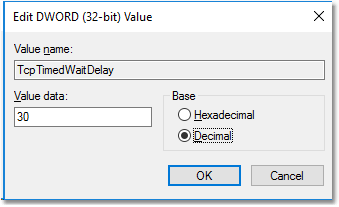
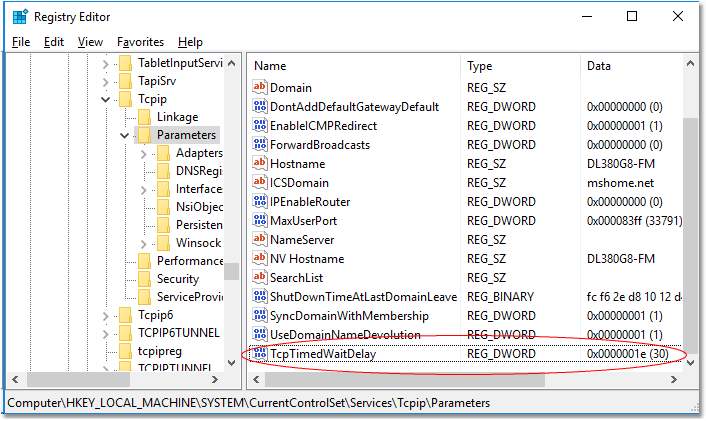
You need to restart Windows after changing this registry setting.
These settings are also discussed in Microsoft technical documents: https://docs.microsoft.com/en-us/biztalk/technical-guides/settings-that-can-be-modified-to-improve-network-performance