
Deployment Example (Standalone HyperServer)
Deploying uniGUI Runtime Files
We start by deploying uniGUI runtime files. A tar archive is available in the customer portal for download. Download the correct version of runtime in tar format. For this example we use the runtime file for uniGUI build 1594:
fmsoft_unigui_complete_runtime_1.95.0.1594.tar.xz
Copy the above folder to the standard runtime folder for Linux deployment:
/etc/fmsoft/unigui/unigui_runtime
Or set a different folder for the runtime path using the HyperServer config property framework_files_root_linux.
Extract the runtime tar archive with:
tar -xf fmsoft_unigui_complete_runtime_1.95.0.1594.tar.xz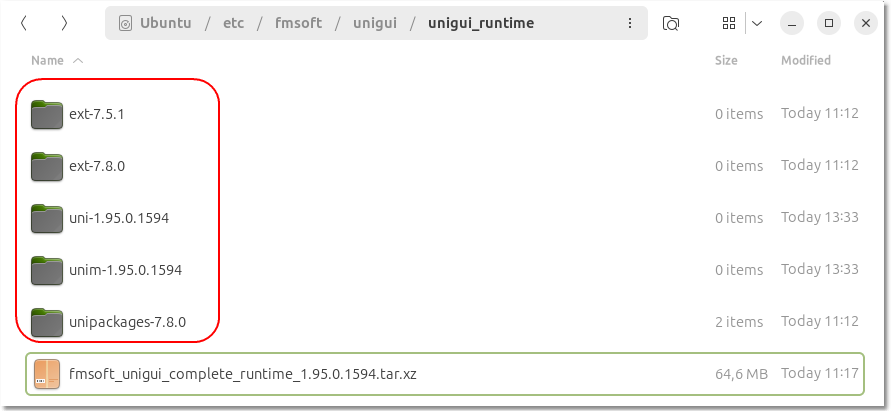
Deploying HyperServer Executable
Create a folder for HyperServer and deploy the Linux executable found under ..\Framework\uniGUI\HyperServer\linux64.
Create a folder named hyper_server under root:
(The example uses sudo to ensure you have sufficient privileges to create a folder in the root directory.)
Copy the hyper_server file into the hyper_server folder. Because the file may not have Linux execute permissions, make it executable:
Note: This must be done each time you copy a new version of HyperServer. You can use a batch script to automate this step.
Configuring the Server
Run HyperServer with default settings. This will create the configuration file and several other folders. Use:
(Using sudo ensures HyperServer has access to required resources.)
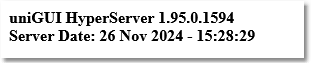
While the server is running, test it by accessing:
http://:8077/@info
You should see a status text in the browser confirming the server is running:
A file named hyper_server.cfg is created in the /hyper_server folder. Edit this file with your preferred editor or edit it on Windows and copy it back to the Linux server. For full details refer to Installing and Configuring HyperServer:
https://unigui.com/doc/online_help/installing-and-configuring-hyp.htm
In this example we'll configure HyperServer to run three applications: ActionList, FishFacts, and PaintDemo. Build these applications targeting the Delphi Linux64 platform. After building, copy the Linux executable files to the /hyper_server folder on the server.
Note: Build apps in Release mode so binary files are reasonably sized.
Under the [hyper_server] section make the following changes (example):
This makes FishFacts the default application; the server listens on port 88; max_nodes is set to 16.
Add two additional sections to configure the other apps:
Reminder: Linux is case-sensitive. binary_name must match the file name and case exactly.
Make each application binary executable (repeat for each binary):
Restart HyperServer (stop it first if it's still running), then start it again:
Testing HyperServer and Applications
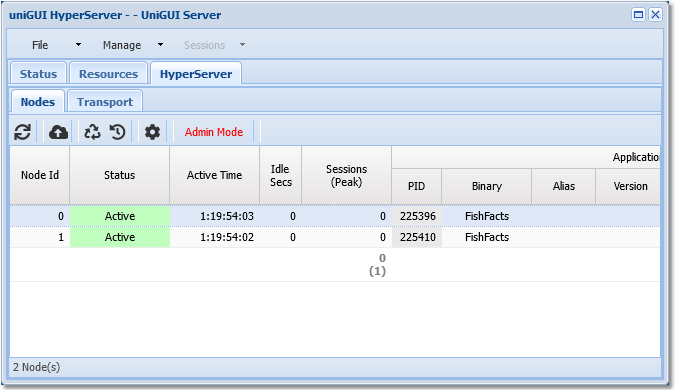
Access the server control panel (note the port changed to 88):
http://:88/server
This should bring up the HyperServer control panel:
For test environments the login prompt can be disabled in the CFG file:
Warning: Only disable login in a test environment. For production enable login and create at least one credential:
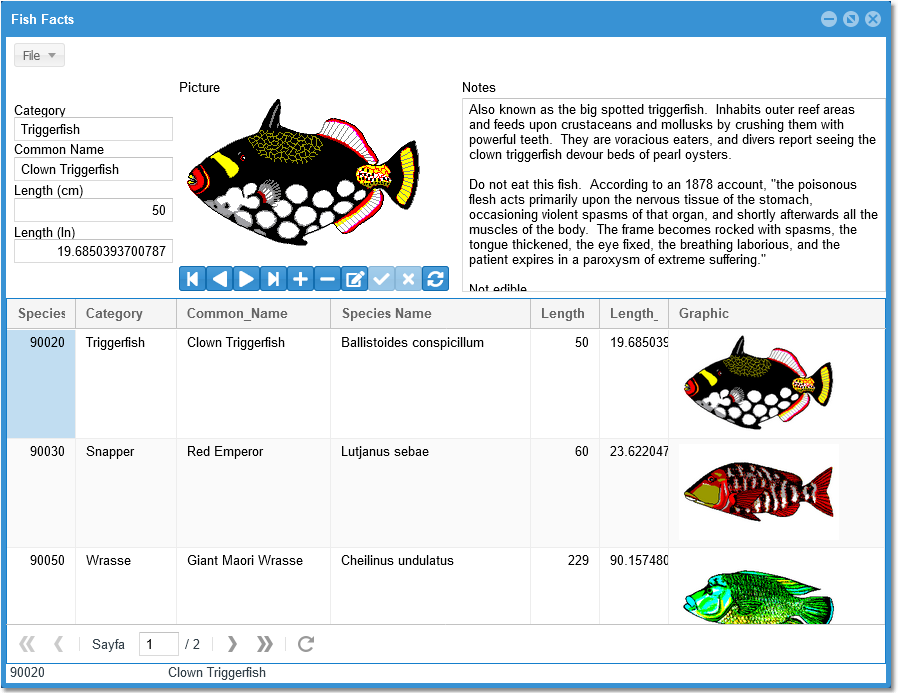
Test the configured applications:
Default application:
http://:88
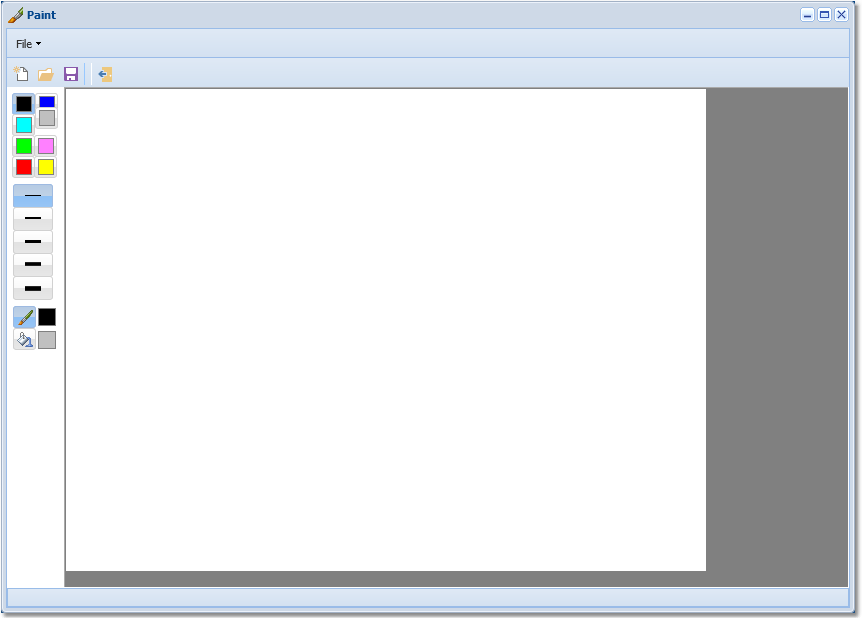
clip0343 Paint application:
http://:88/paint
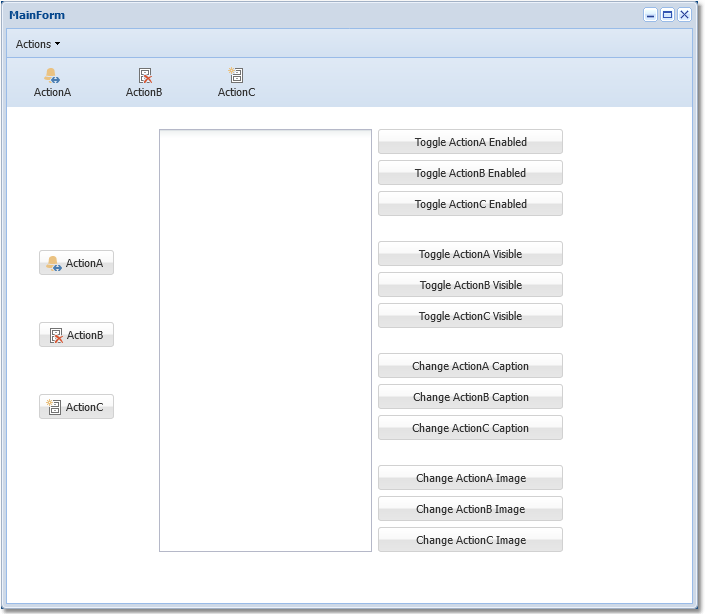
clip0344 Action application:
http://:88/action
clip0345
If these pages load, the HyperServer instance is successfully serving the three applications.
Important note: In production, run HyperServer as a system service. See "Running HyperServer as a Linux Service" for details:
https://unigui.com/doc/online_help/running-hyperserver-as-a-linux.htm