
Installing uniGUI Using The New Installer
Installing uniGUI using the new installer is easy and straightforward. This guide aims to cover all available scenarios including the trial edition.
First step is to download uniGUI from the Customer Portal. If you are installing uniGUI trial edition you can download it from uniGUI website.
Running the Installer
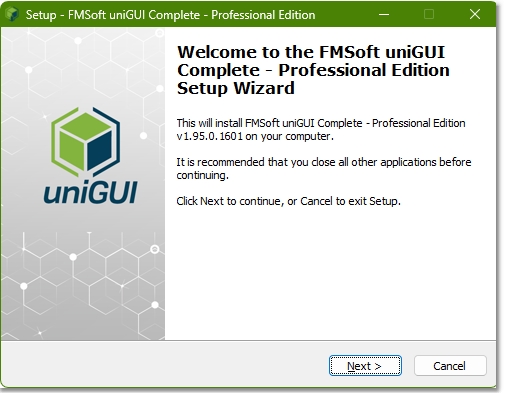
After running the installer you will see the introduction page.
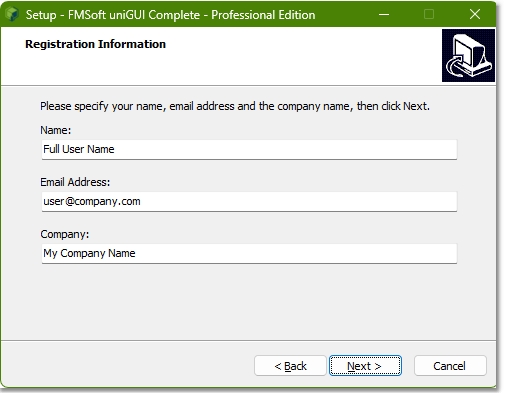
Pressing Next will show the Registration Information form. (Commercial edition only. This form won't be shown if you are installing the trial edition)
Please enter your name and email address (Company is optional). This email address should be the same address you have used to buy uniGUI license.
Activating The License
Next step is to activate your license. (Commercial edition only)
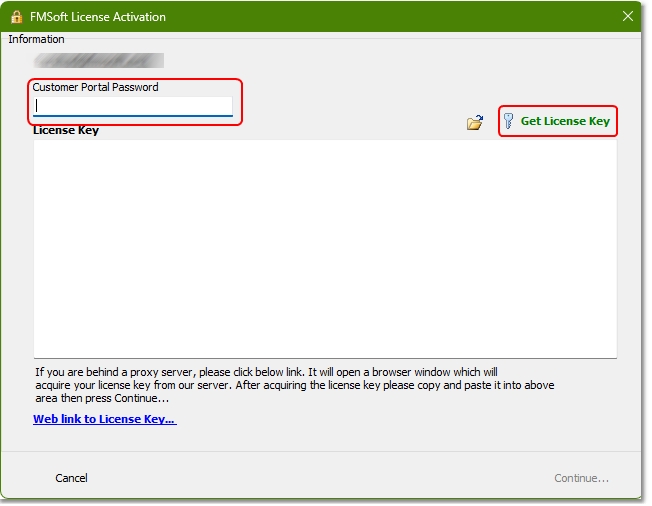
This new form will be used to acquire your license key and activate your license.
You need to enter your Customer Portal password in the related field and press the Get License Key button.
This an automatically generated password which is sent to by an email when you purchase a license.
If you are a team member this password is sent to you by an email when your team leader assigns you as a team member.
Needless to say that if you have changed your password in the Customer Portal then you must use the updated one.
If your password is correct then a license will be acquired from our server and Continue... button will be activated.
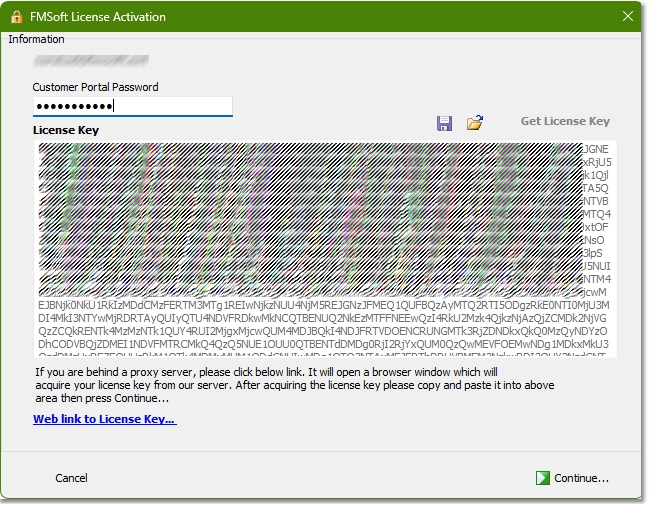
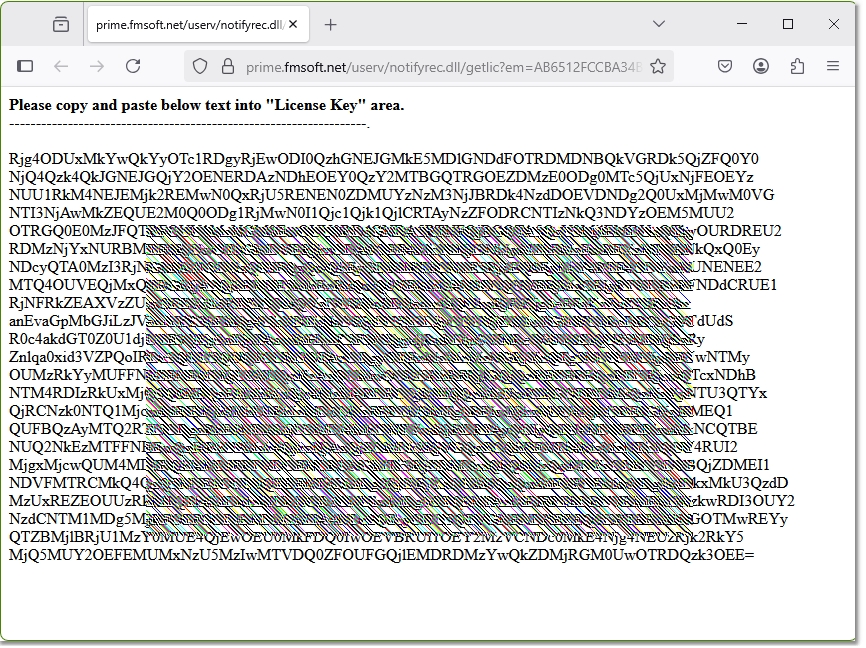
Note: If your computer is behind a proxy server you may not to be able to retrieve a license key directly. In this case you can get your license key indirectly by clicking on the blue link Web link to license key....
This will open a browser window containing your license key. You can paste the key in the License Key area.
Offline Activation
Alternatively you can activate your license using a previously saved license key. After retrieving your key you can save it your HDD using save button and load it later when installing uniGUI again on same computer. Please note that the save license key is only valid for the computer you are installing uniGUI. This key maybe also valid for next uniGUI releases, but it can not be guaranteed. We may change license key validation algorithm from time to time, so your saved key may become invalid sometime in the future for any of the future releases. (It will stay valid for the version that you have used to obtained this key)
License Agreement
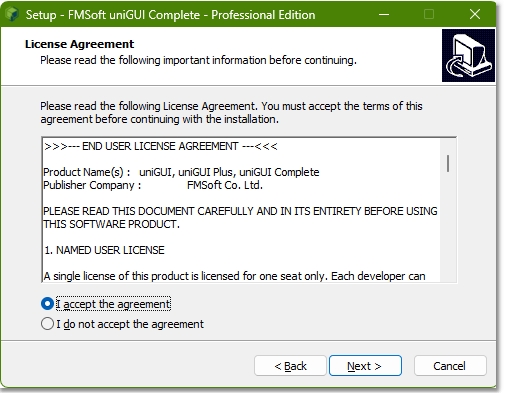
Pressing the Continue... key will show the License Agreement page. Please review the displayed EULA terms and choose I accept the agreement choice to continue.
Installation Folder
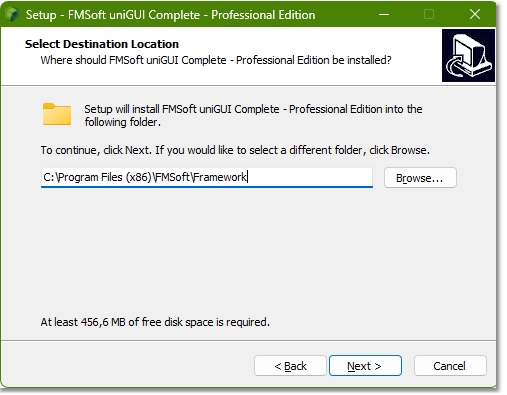
Next step will ask you to choose a folder to install uniGUI or choose the default folder (Recommended).
Choosing Delphi (RAD Studio) Versions
In next page a list of available Delphi installation will be displayed. Installer scan registry information to detect valid Delphi installations in your computer. Only valid installations of Delphi will be available in the list.
For example, if there's only one version installed in your PC you will see it as the only item in the list. You can customize this list by deselecting the Delphi versions you don't want to install uniGUI. In below picture as you may have noticed some of the Delphi versions are listed as Delphi while others are listed as RAD Studio. This means that for some of the versions only Delphi is supported while for others uniGUI supports both Delphi and C++ Builder.
Basically, uniGUI support for C++ Builder starts from RAD Studio 2009. The term RAD Studio will be displayed regardless of the actual products that are installed. (Whether the installed product is Delphi, C++ Builder or both)
For example, if you have installed Delphi XE only (no C++ Builder), it will be still listed as RAD Studio XE in the components list.
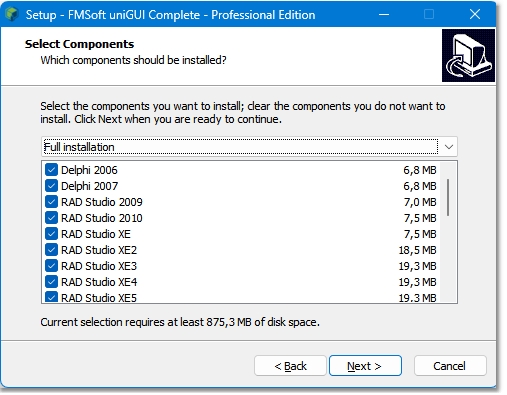
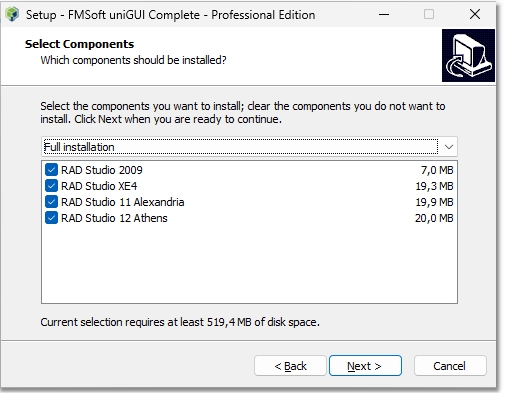
As said above, the list of components will be customized based on the versions of RAD Studio that are installed on your PC.
For example, in below image four different versions of RAD Studio are installed on the PC.
Installation of uniGUI Files and Packages
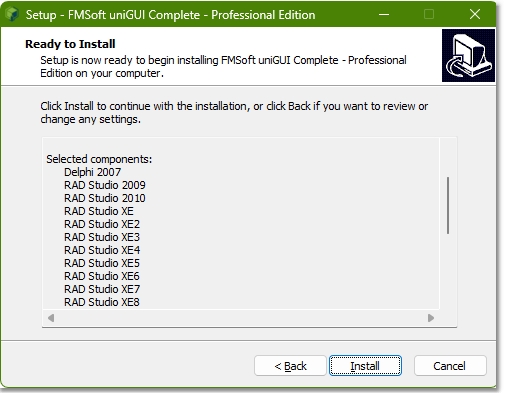
In next screen uniGUI installer is ready to install the packages. You can go Back if you want to change any detail or press Install to complete the installation.
The rest of the process will happen automatically and installer will display various information about the process stages.
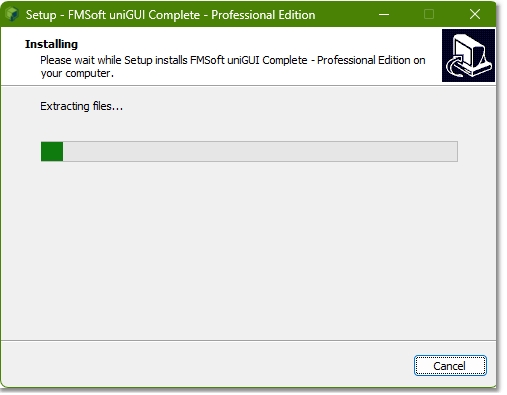
In next stage files will be extracted.
Compiling the Packages
One of the new features of the new installer is its ability to compile uniGUI package during the installation.
For each selected version of Delphi the installer will compile uniGUI package for Delphi and generates C++ library and header files.
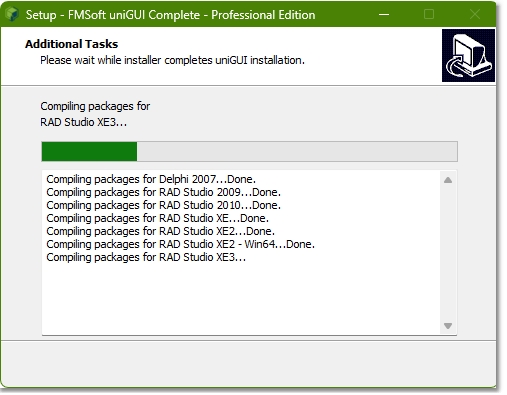
It is possible that you may encounter an error during package compilation. In this case an error message will be displayed as below:
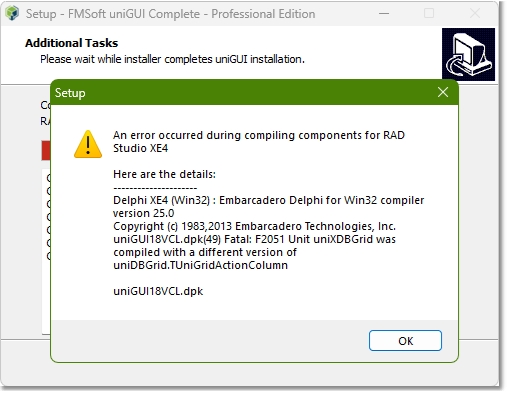
So what can be done when you get a compile time error?
There are few things to try:
•Make a clean install of uniGUI especially when you try to upgrade from or downgrade to a different uniGUI edition. A clean install means uninstalling any previous version of uniGUI and completely erasing the uniGUI Framework folder.
•Make sure your Delphi edition has all available updates and patches installed.
•Make sure your Delphi installation is valid and working i.e. you are able to build applications in Delphi IDE.
•If you have installed the Community Edition please scroll down the page and read the section (Additional Steps for RAD Studio Community Edition).
Finalizing The Installation
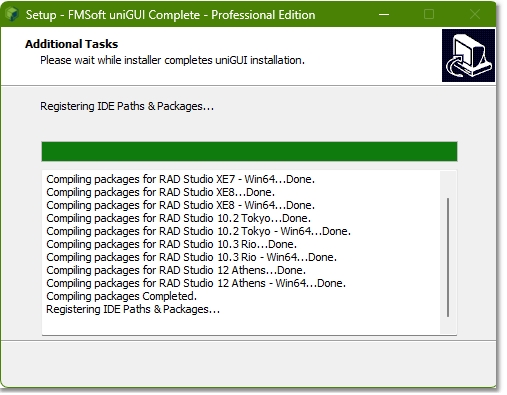
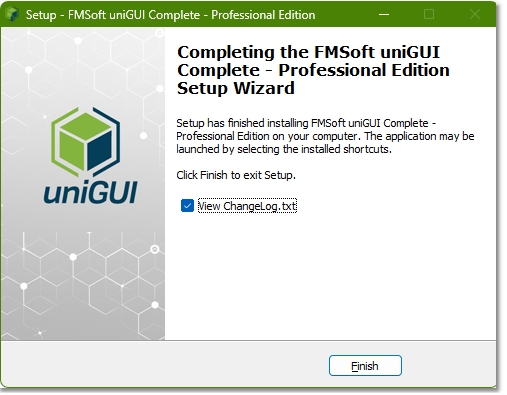
After all packages are compiled installer will apply necessary registry settings to adjust IDE paths and register uniGUI packages.
Additional Steps for RAD Studio Community Edition
Unfortunately, uniGUI installer is unable to automatically compile packages for RAD Studio Community Edition.
This edition doesn't include the command line compilers dcc32/dcc64 which makes it impossible to compile packages outside the IDE.
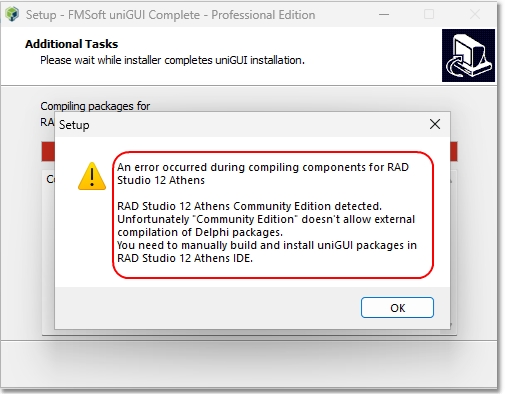
If you try installing uniGUI for Community Edition you will get below error message. After this error installation process will continue and will end normally.
At this stage you need to follow the installation instructions for our legacy installer.
Which means that you need to open uniGUI packages in the Delphi IDE, build them and install the design time packages manually.
Last updated