
Compling & Running a uniGUI Application
First step is to create a Standalone uniGUI Application.
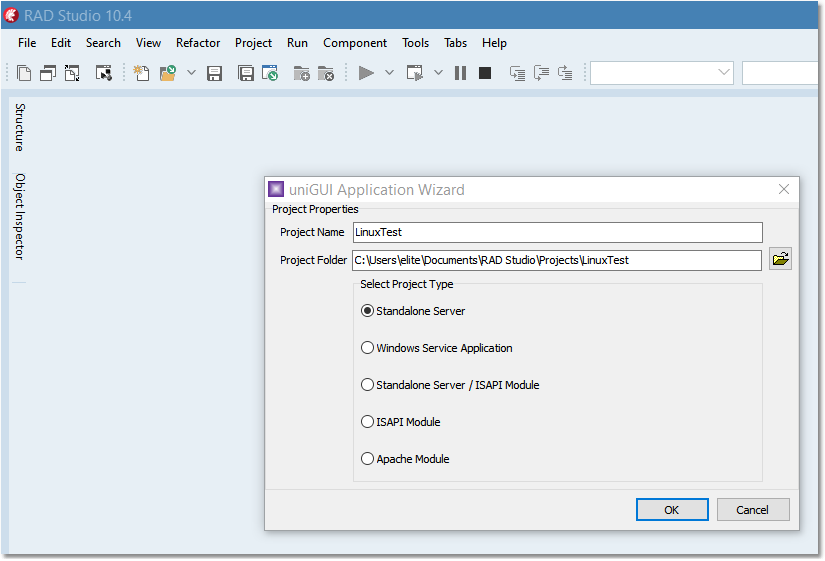
In Delphi IDE go to New -> Other... -> Delphi -> uniGUI for Delphi -> Application Wizard
A standard uniGUI application will be created in the IDE.
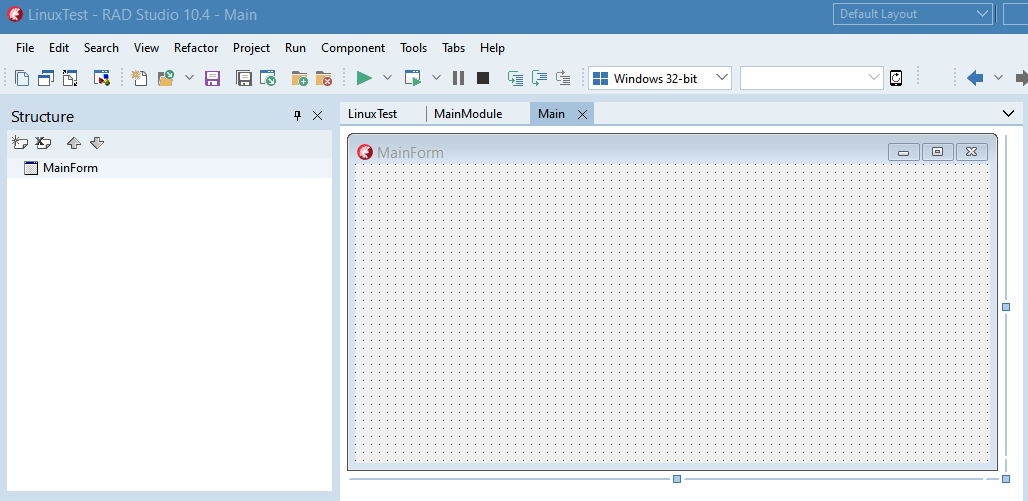
The default target platform is Windows 32. For Windows you can compile and run this application directly.
For Linux64 platform a few adjustments should be done. First of all, we need to adjust the path for the framework files. Currently there is no Runtime Package for Linux, so we need to manually adjust the paths in code.
In ServerModule there is a property named FrameworkFilesRoot. It allows you to easily adjust the path where all framework files are located.
Note: Staring with build 1591 uniGUI runtime for Linux are deployed in tar.gz (or tar.xz) format and can be downloaded from customer portal.
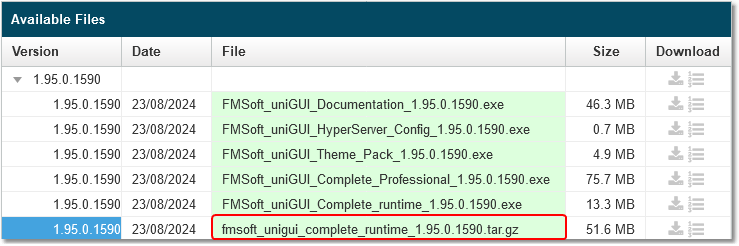
For builds prior to 1591 you need to create the Linux runtime file manually. First of all you need to create a compressed file containing all of the uniGUI runtime files.
Open the folder where uniGUI is installed. There are 4 folders which contain uniGUI runtime files.
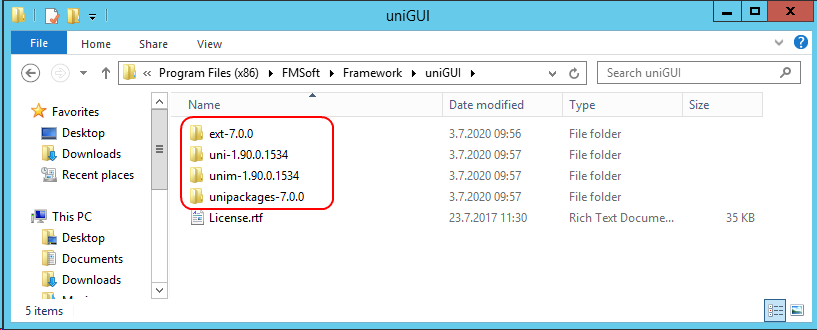
Now create a compressed ZIP file which will include all these folders and subfolders.
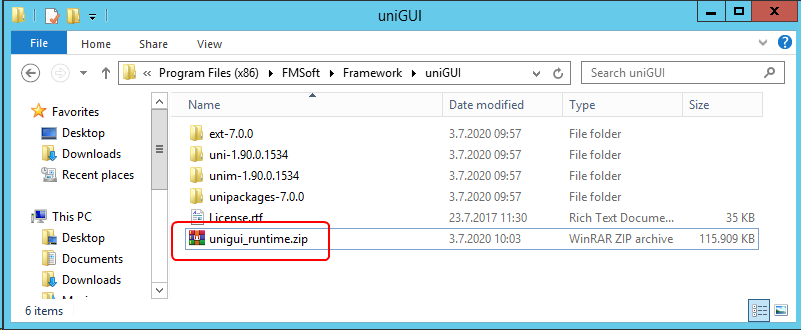
Copy this ZIP file to your Linux PC using FTP or any other preferred method.
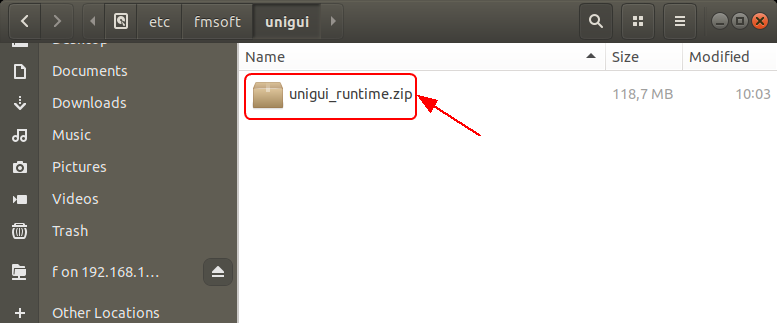
In Linux machine we created a folder named fmsoft/unigui under etc folder. Since etc is a Linux system folder you need admin privilege to do this.
Copy your zip file into this folder. Again you will need admin rights.
You can also choose a folder under your Linux home folder, but using etc is better because it will be visible for all users.
Now unzip this file into current folder. A new folder named unigui_runtime will be created. It contains all required files for uniGUI applications to run on your Linux server. If you use any third party uniGUI controls then you need to copy them here as well.
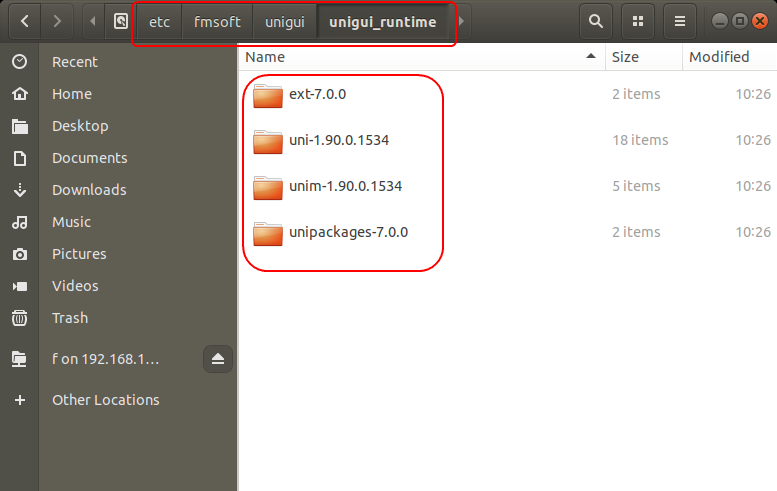
Please note that Linux is a case-sensitive operating system, so in your application all file and folder names should be referred with same case.
Using FrameworkFilesRootLinux (build 1591+)
Starting with build 1591 you can use the new FrameworkFilesRootLinux property. This property can be left blank and when blank it will use the default value of '/etc/fmsoft/unigui/unigui_runtime'.
Behavior summary (build 1591+):
If FrameworkFilesRootLinux is blank, the default '/etc/fmsoft/unigui/unigui_runtime' is used.
For backward compatibility, if FrameworkFilesRootLinux is blank but FrameworkFilesRoot is set, the value in FrameworkFilesRoot will be used for Linux.
If both FrameworkFilesRoot and FrameworkFilesRootLinux are set:
FrameworkFilesRoot is used for Windows.
FrameworkFilesRootLinux is used for Linux.
Thus, for build 1591 or later you can assign values directly to FrameworkFilesRoot or FrameworkFilesRootLinux instead of using OnBeforeInit code.
Add Linux64 Platform Target and Build
Add the Linux64 platform target to your application.
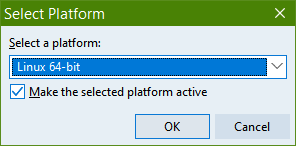
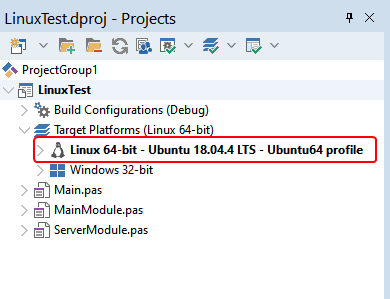
Build your project for Linux64 platform. If everything is correct you should be able to build the application successfully. Your Linux executable file will be located under ..\Linux64\Debug\ folder.
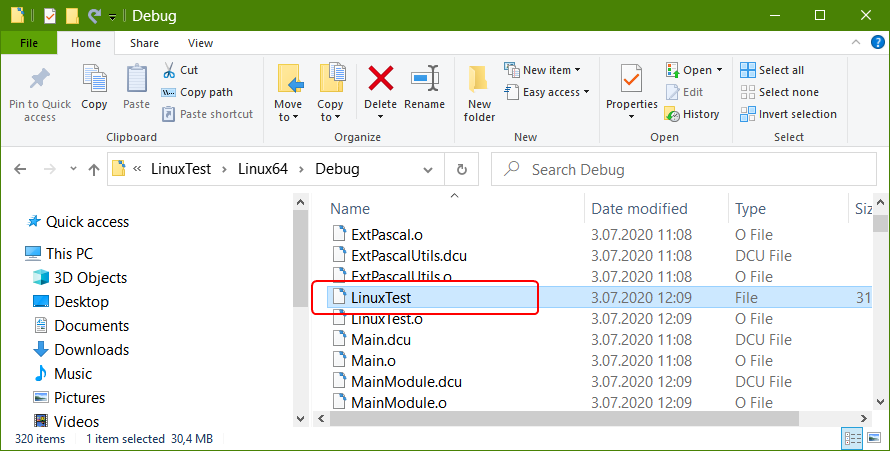
Note: the Linux executable file has no extension.
Deploy and Run on Linux
Assuming PAServer is running on Linux and Delphi is configured to communicate with PAServer:
Press F9 in Delphi to deploy the Linux application to your Linux server. Once deployment is completed the application will be executed on the Linux server in debug mode.
Open a browser and navigate to: http://linuxserver_ip_address:8077
Example (from the document): http://192.168.1.15:8077/
If all settings are correct you will see a blank uniGUI form in the browser — your uniGUI Linux application is running.
If you want to convert/compile an existing uniGUI application for Linux platform you may notice that Linux64 target platform may not appear in the list of available targets.
To fix this, close your project and open the related .dproj file in a text editor. Change: VCL to: None
After this change you should be able to see the Linux64 platform in the list of available platforms.