
Adjusting Paths
If you don't plan to deploy your app using the uniGUI Runtime Package because you want to deploy the runtime files yourself, then the path settings must be adjusted accordingly. There are some essential paths for a uniGUI application which must be adjusted before you can run it on the server.
First of all, you must be sure that your Web Application knows where Ext JS files are located. In your Application ServerModule assign the correct path to ExtRoot. The default value of ExtRoot is "[ext]" which means that Ext JS files are located where the uniGUI Runtime Package is installed:
\FMSoft\Framework\uniGUI\ext-x.y.z.build
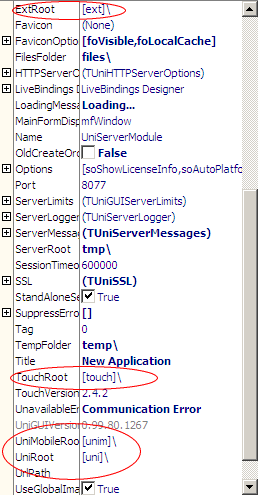
If you do not install the uniGUI Runtime Package on the target PC, you must assign a full or relative path to ExtRoot. If you assign a relative path it will be relative to ServerRoot and you can use the "......\myfolder" partial path notation.
The easiest method is to set the ExtRoot to ".[ext]" and copy the "ext-x.y.x.build" folder to the root folder of your web application (where application executable or DLL module resides). For security reasons, it is better to put the "ext-x.y.x.build" folder in another folder and deploy all "ext-x.y.x.build" files as read-only. Under IIS, make sure your application has read-only access to the "ext-x.y.x.build" folder and its files.
Hint: Ext JS folder placement and permissions
Prefer placing the Ext JS build folder outside the application executable folder and set files read-only. Under IIS ensure the application pool identity has appropriate read permissions.
Some examples of ExtRoot settings
ExtJS Files are in:
ExtRoot = "[ext]\"\FMSoft\Framework\uniGUI\ext-x.y.z.build (Recommended)ExtRoot = ".\[ext]\"\ext-x.y.z.build\ExtRoot = "C:\ExtJS\[ext]\"C:\ExtJS\ext-x.y.z.build\ExtRoot = ".\ExtJS\[ext]\"\ExtJS\ext-x.y.z.build\ExtRoot = ".\ExtJS\ext\"\ExtJS\ext\
In all cases, ext-x.y.z.build is translated into a string which represents the correct folder for your Ext JS version. For example, if your uniGUI version is based on Ext JS 4.2.5.1736 it will be translated to folder name: .\<path>\ext-4.2.5.1763\.
The same principle applies to uniRoot, uniMobileRoot and TouchRoot properties.
uniGUI JS Files examples
UniRoot = "[uni]\"\FMSoft\Framework\uniGUI\uni-x.y.z.build (Recommended)UniMobileRoot = "[unim]\"\FMSoft\Framework\uniGUI\unim-x.y.z.build (Recommended)UniRoot = ".\[uni]\"\uni-x.y.z.build\UniMobileRoot = ".\[unim]\"\unim-x.y.z.build\
Note: If path\uni-x.y.z.build\ does not exist, path\uni\ folder will be used instead.
The string uni-x.y.z.build corresponds to the uniGUI version. If your uniGUI version is 0.99.80.1260, the translated folder name will be uni-0.99.80.1260.
If you deploy custom uniGUI themes to your server, you can also set a custom folder for theme files using the UniPackagesRoot property.
Default value
UniPackagesRoot = "[unipack]\"means custom themes are placed in the default installer location. Make sure that thethemesfolder from the default installation is completely copied to the target folder.
Themes examples:
UniPackagesRoot = "C:\ext\[unipack]\"C:\ext\unipackages\themes\folderUniPackagesRoot = ".\themefiles\"<server root>\themefiles\themes\folderUniPackagesRoot = ".\[unipack]\"<server root>\unipackages\themes\folder
ServerModule other path parameters
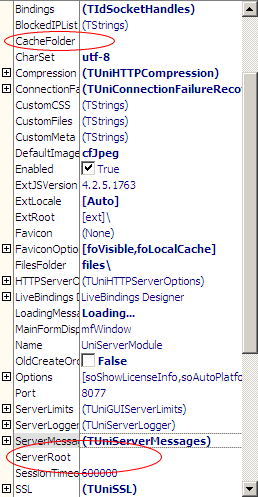
In ServerModule there are two other path parameters: ServerRoot and CacheFolder.
ServerRoot
ServerRootdefines the root path for all relative paths. A blank value points to the application startup folder.CacheFolder A uniGUI server needs a folder to create temporary files. Normally, it is a folder named
Cachecreated under the same folder your module exists. You can change this default location by assigning a different path to theCacheFolderparameter. Under IIS, make sure your application has full access toCacheFolder.
If you want to change these properties at runtime, do it in the OnBeforeInit event handler of UniServerModule.