EurekaLog

EurekaLog

EurekaLogarrow-up-right is an advanced debugging tool for Delphi applications. According to EurekaLog: "EurekaLog is the exception tracer tool that gives your application the ability to catch all bugs in your code and generates a detailed log with the call stack, which includes unit, class, method and line number information. This information is also logged to a file and may optionally be forwarded to you (application developer) via Internet."

Most of the time, when an exception occurs in your application, you will see a message on the client screen and also a log line in the uniGUI log file. This information will be useful only if the exception type is known and you can reproduce it repetitively. If the exception is a random AV (Access Violation) or any other exception which occurs rarely, it may be difficult to find the exact source of the error. EurekaLog will help you find the exact line number in your source code which is triggering the exception.

EurekaLog can work with uniGUI applications after making a few changes in its configuration and in the application DPR. After installing EurekaLog, open your uniGUI project and follow the steps below.

1

1. Open EurekaLog Options and import uniGUI settings

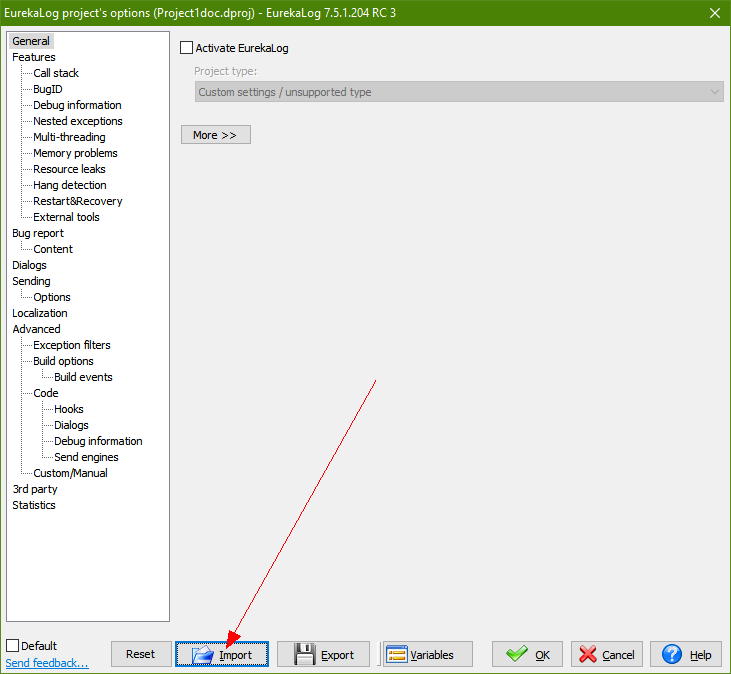
Go to "Project -> EurekaLog Options".

clip0116

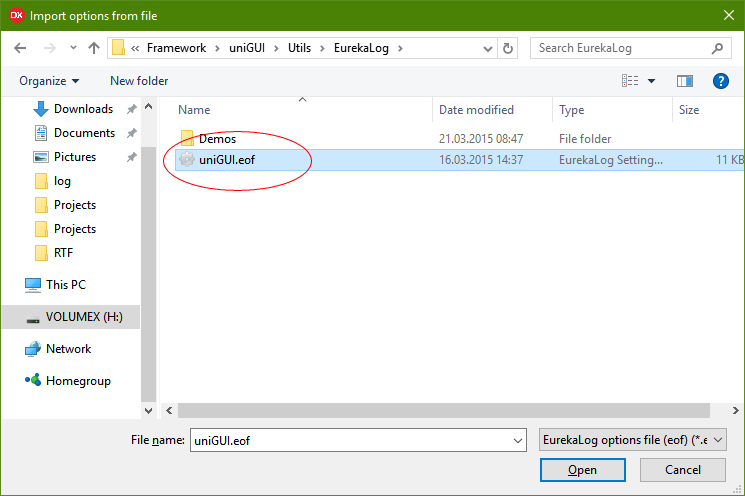
Select Import and choose the uniGUI.dof file which is available under ..\uniGUI\Utils\EurekaLog\ folder.

clip0117

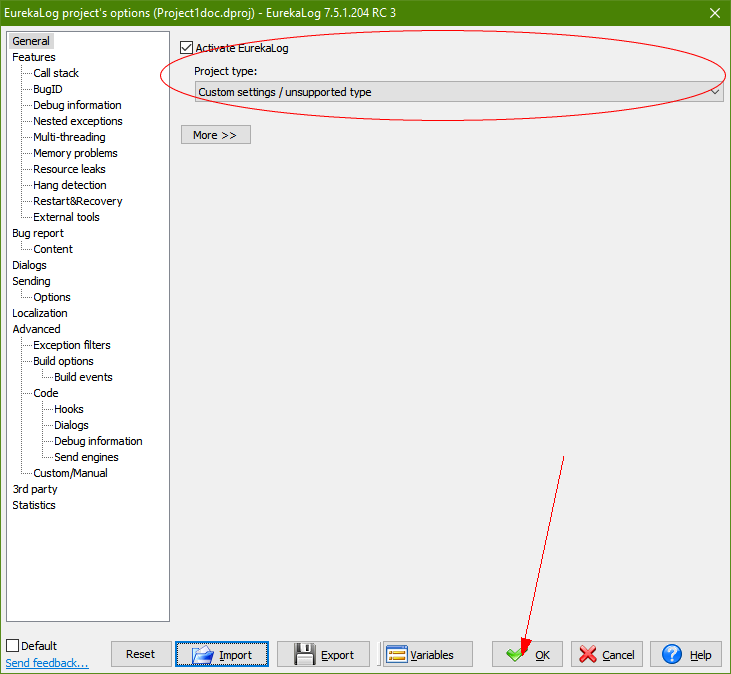
After Import is done, press OK to continue.

clip0118
2

2. Edit your DPR file

In Delphi, open your DPR file and add the EAppUniGUI unit to the uses clause so the DPR looks similar to this:

program Project1doc;

uses

{$IFDEF EurekaLog}
  EMemLeaks,
  EResLeaks,
  ExceptionLog7,
{$ENDIF EurekaLog}

  EAppUniGUI, // add this line
  Forms,
  ServerModule in 'ServerModule.pas' {UniServerModule: TUniGUIServerModule},
  MainModule in 'MainModule.pas' {UniMainModule: TUniGUIMainModule},
  Main in 'Main.pas' {MainForm: TUniForm},
  Unit1 in 'Unit1.pas' {UniForm1: TUniForm};

{$R *.res}

begin
  ReportMemoryLeaksOnShutdown := True;
  Application.Initialize;
  TUniServerModule.Create(Application);
  Application.Run;
end.

Normally, EurekaLog only adds:

{$IFDEF EurekaLog}
  EMemLeaks,
  EResLeaks,
  ExceptionLog7,
{$ENDIF EurekaLog}

Make sure you manually add EAppUniGUI to the uses clause as shown above.

Note: Based on your EurekaLog version, the conditional define {$IFDEF EurekaLog} may not be added automatically to your source.

3

3. Add test code that triggers an AV

To test EurekaLog functionality, add code that intentionally raises an Access Violation (AV):

procedure TMainForm.UniButton2Click(Sender: TObject);
var
  P: Pointer;
begin
  P := nil;
  PInteger(P)^ := 1; // raise an AV here
end;

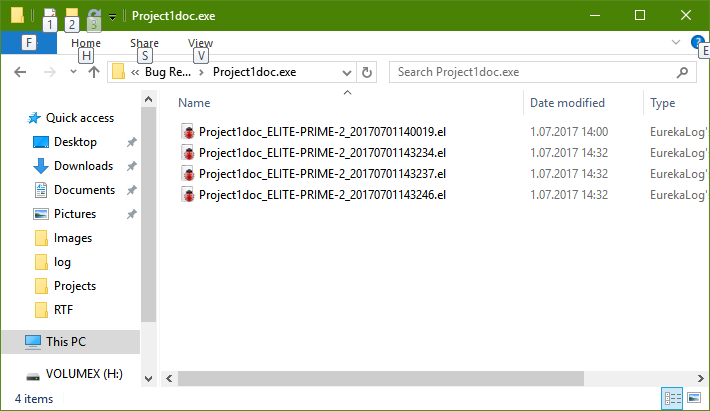
Run your application and press the test button. You will see a simple AV message on the screen and a log file will be created under the EurekaLog folder (created in the same folder as your application).

clip0120

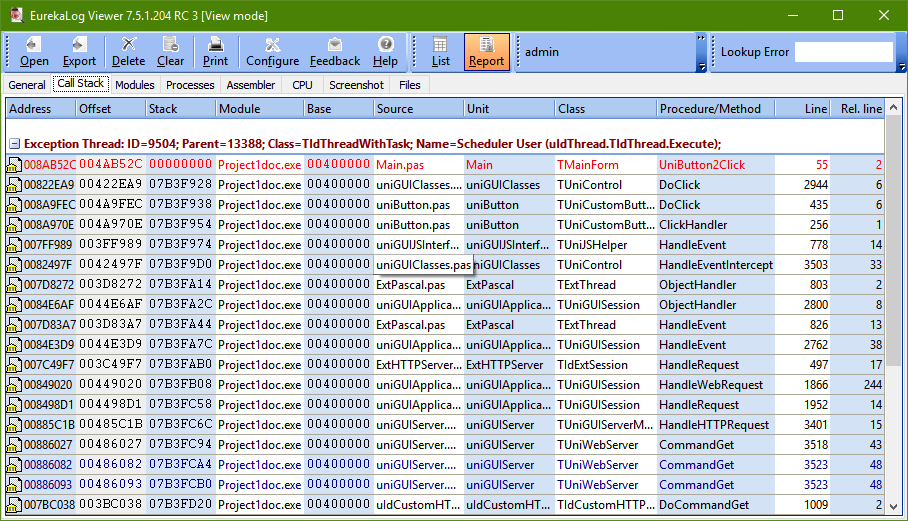
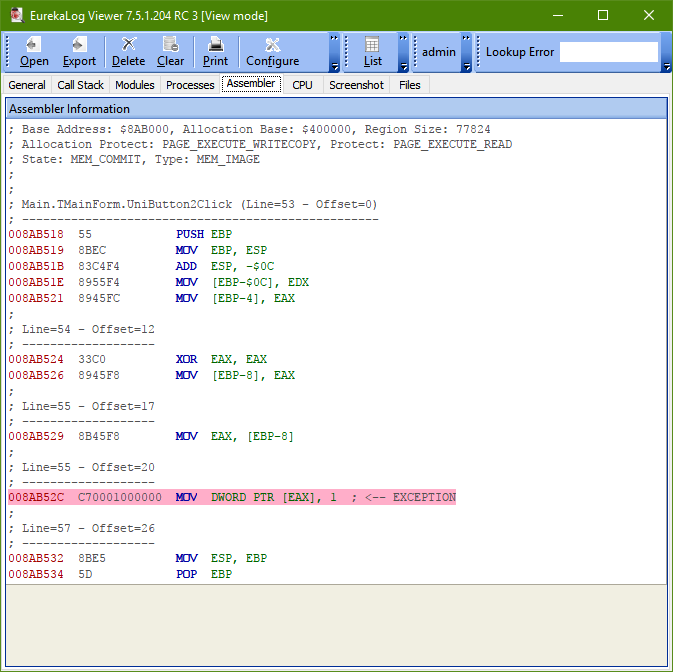
This log file can be opened by EurekaLog Viewer.

clip0121
clip0122
4

4. Show detailed error info on the web client (optional)

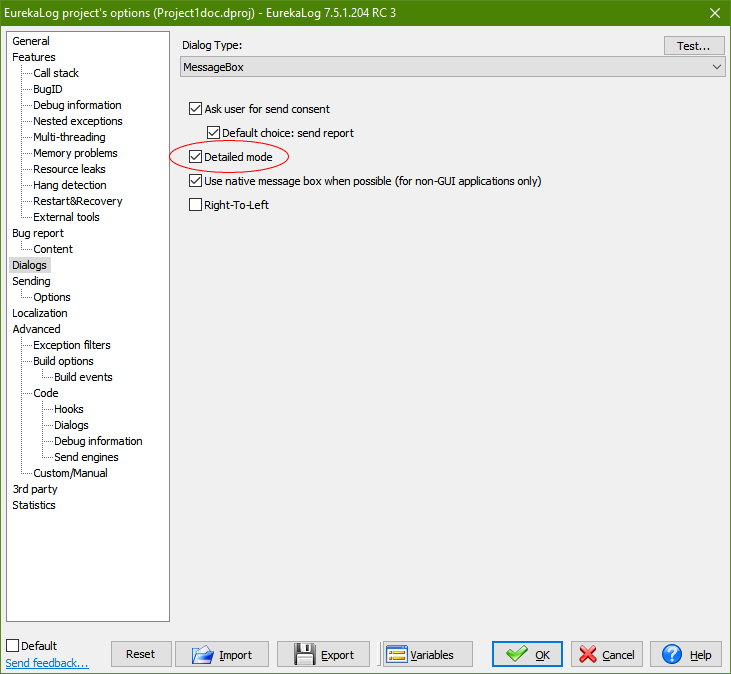
To show a more detailed error log on the web application client screen, go to EurekaLog Options and select Dialogs. In Dialogs, check "Detailed mode".

clip0123

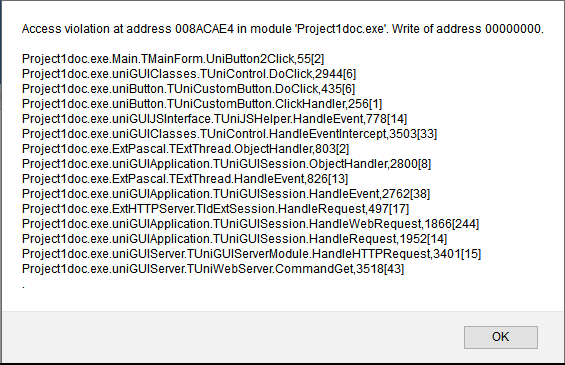
In detailed mode, the error window will show much more information regarding the stack trace:

clip0124

With detailed logs provided by EurekaLog, you can locate the exact location in your code which raises an exception, saving many hours of debugging.

circle-exclamation
circle-info

Note about ISAPI/Standalone combo projects:

When your project is a combo project and you enable EurekaLog, your project may only recognize EurekaLog in one of those modes (ISAPI or Standalone). This happens because EurekaLog is not compatible with the uniGUI combo project file.

To resolve this issue, create separate projects for ISAPI and Standalone modes. You can create a new ISAPI project and import your forms and modules into it. Once you have separate projects, you can add and enable EurekaLog for each project.